
Update Tutorial Voiceovers
When a product or process changes, use speech to text to turn the existing narration into a script. Update the text and generate a new voiceover for your tutorial without recording the narration again.
Turn text into speech with AI voices. Choose a voice and speaking style to create audio for your content.
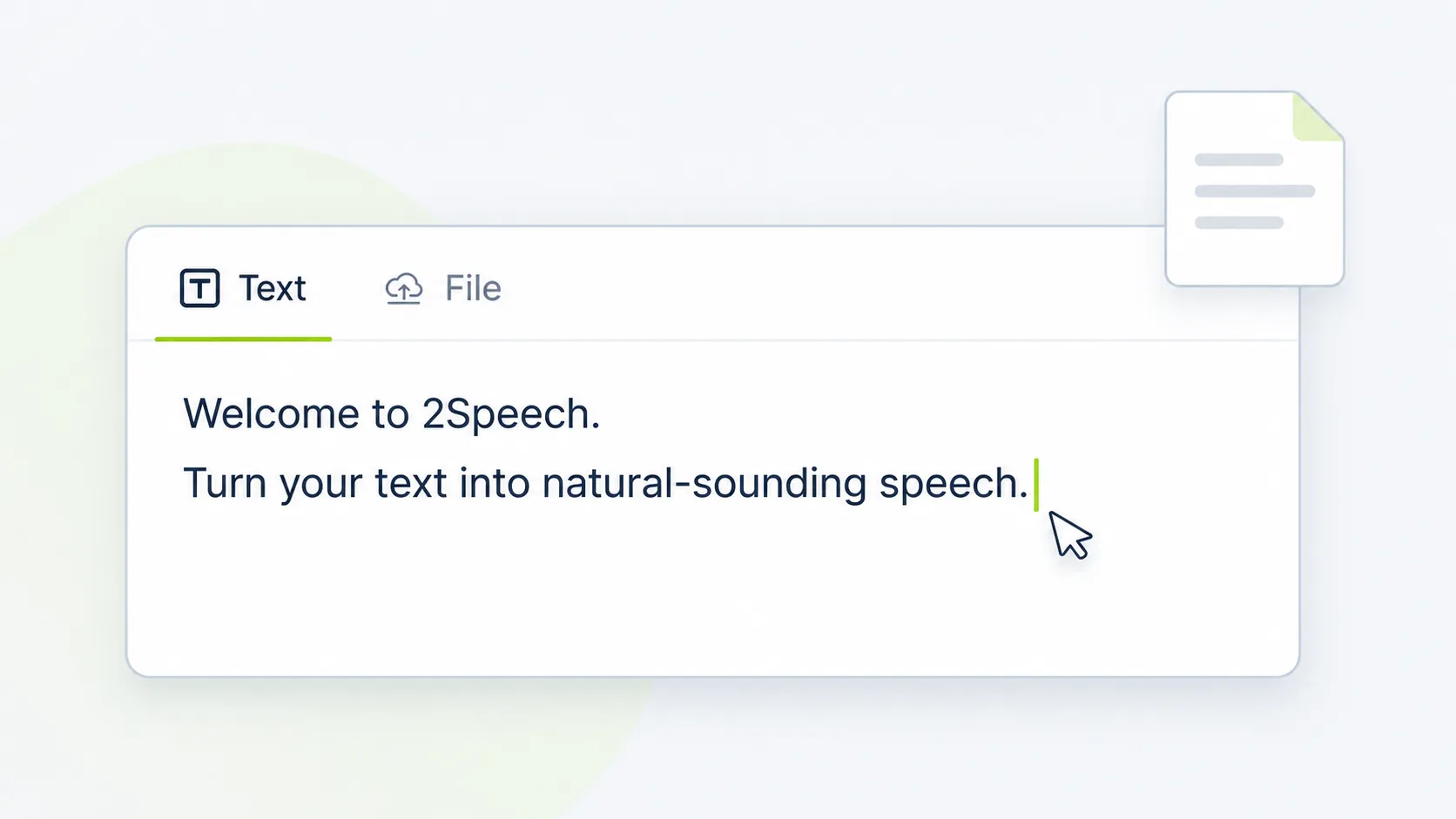
Type or paste your script into the text box, or upload a file containing the text you want to convert to speech.
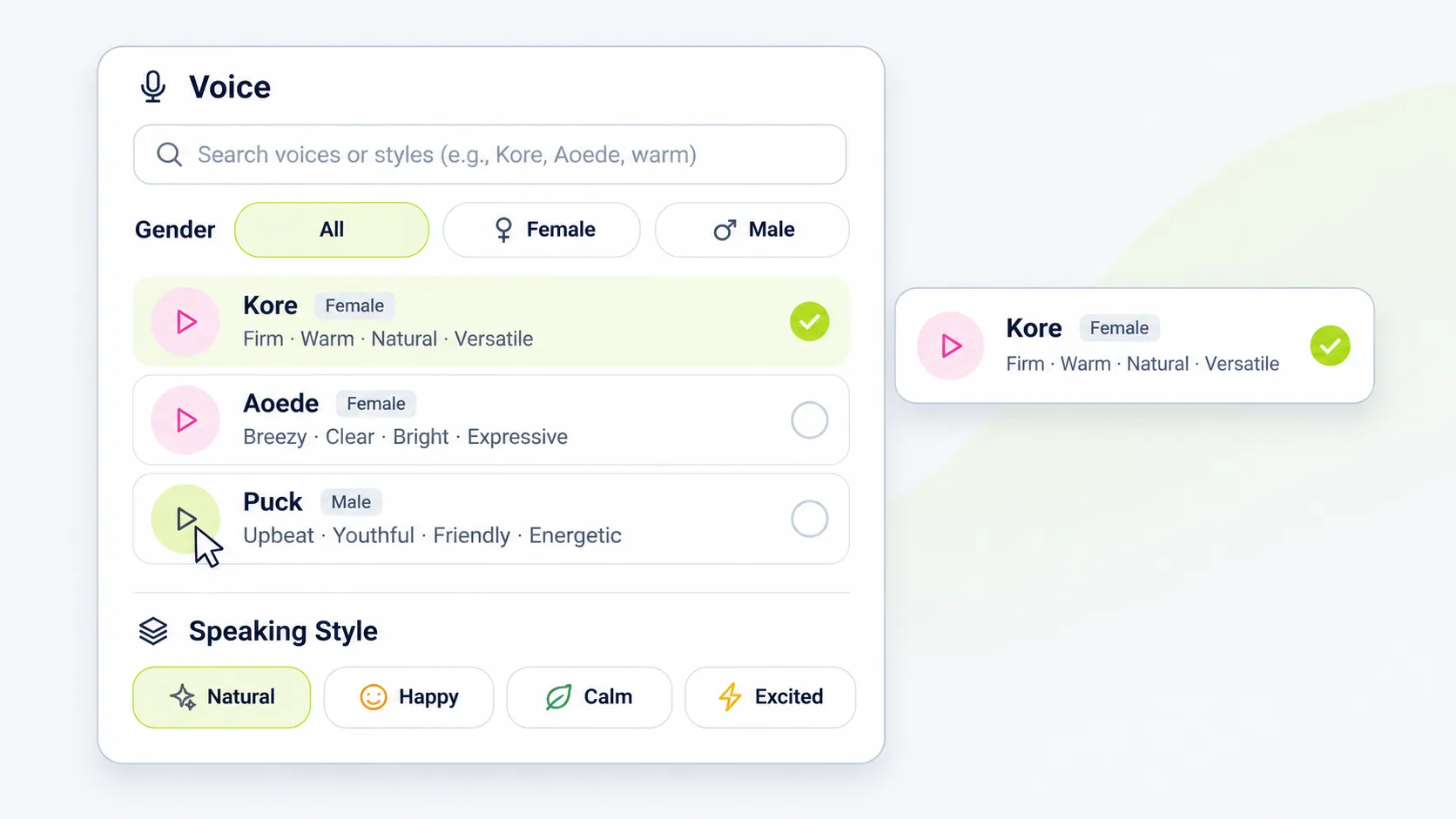
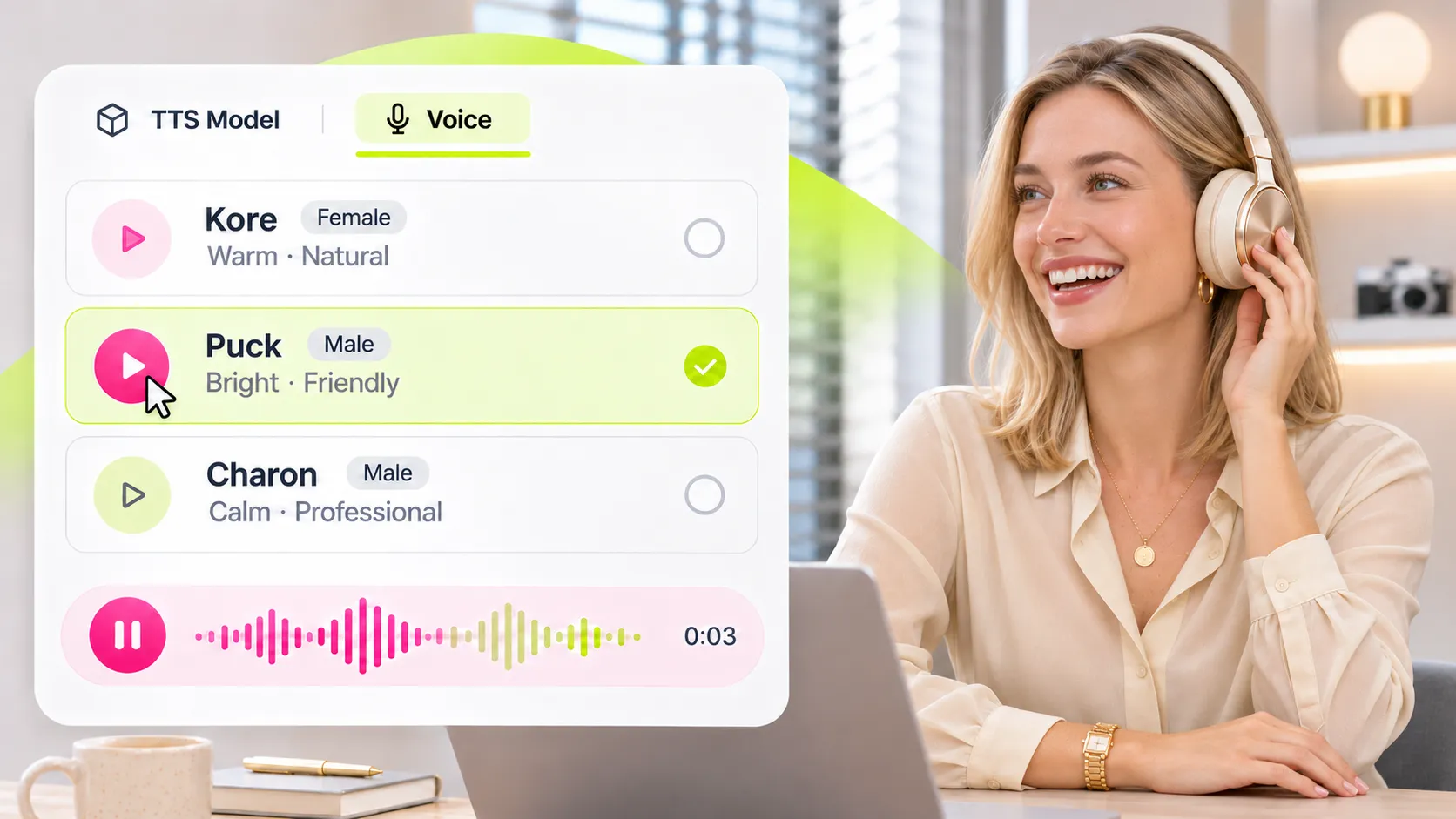
Preview the available AI voices and select one for your content. Choose a speaking style and add voice effects where needed.
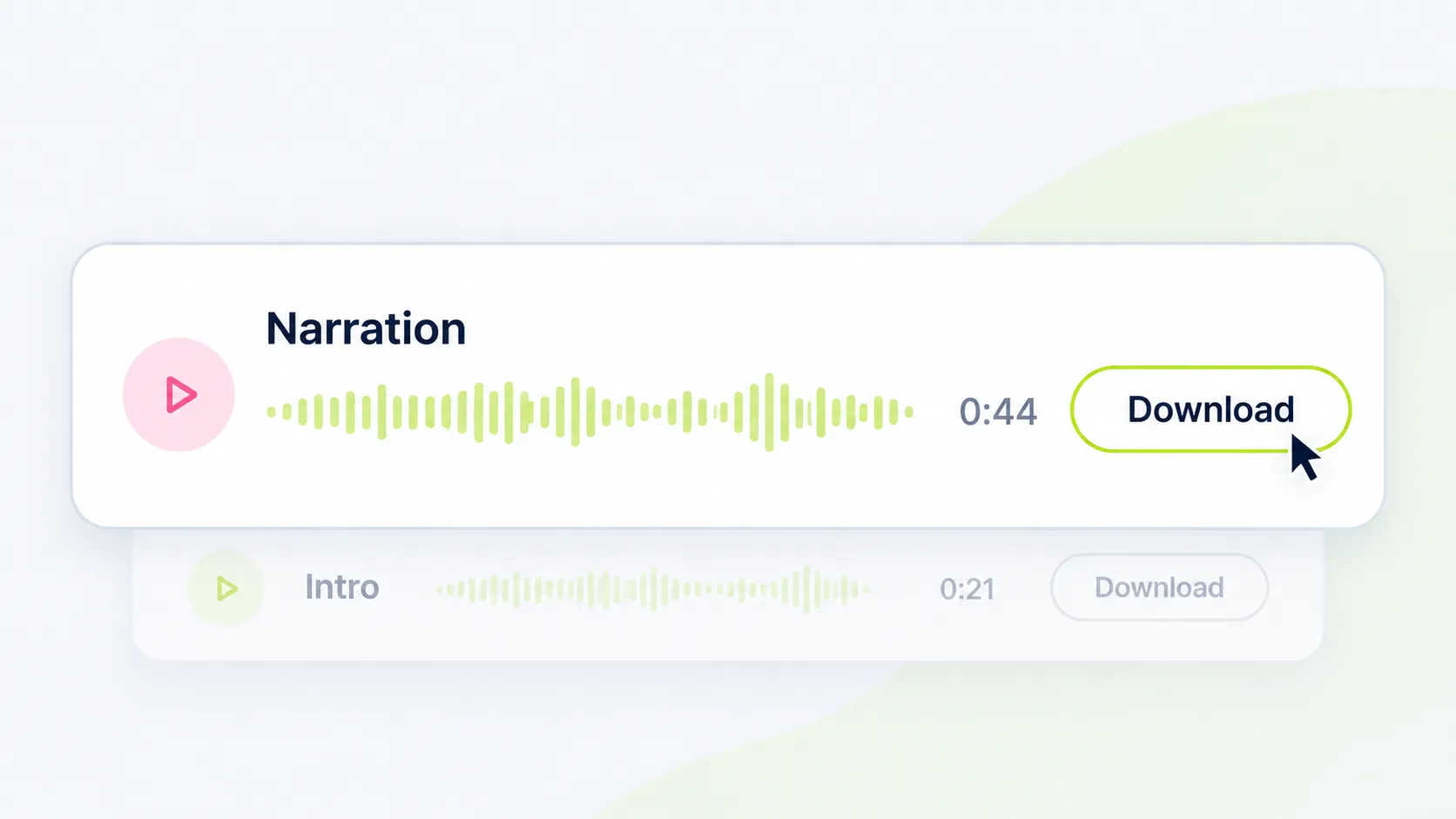
Click Generate Speech to turn your text into audio. Once it is ready, listen to the result or download it for your project.
AI voice generator converts written text into speech, giving you a way to create audio without recording your own voice. Choose from different AI voices and speaking styles to match your content. From tutorials to presentations, it helps you produce narration more efficiently and make written information easier to listen to.
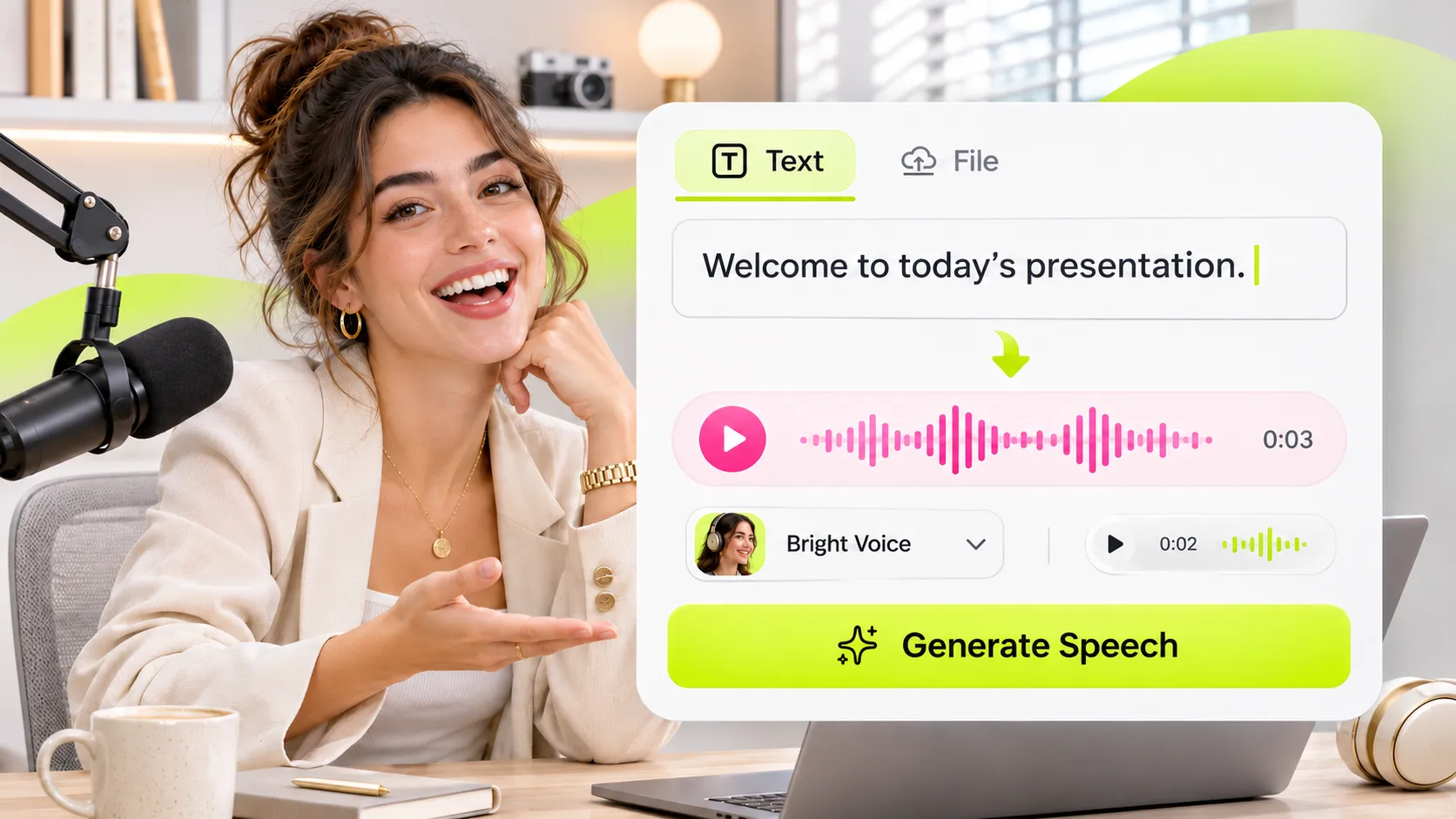
The right voice helps set the tone for your content. Explore male and female AI voices with different qualities, from calm and professional to bright and expressive. Preview the options and choose a voice that fits the way you want your message to be heard.
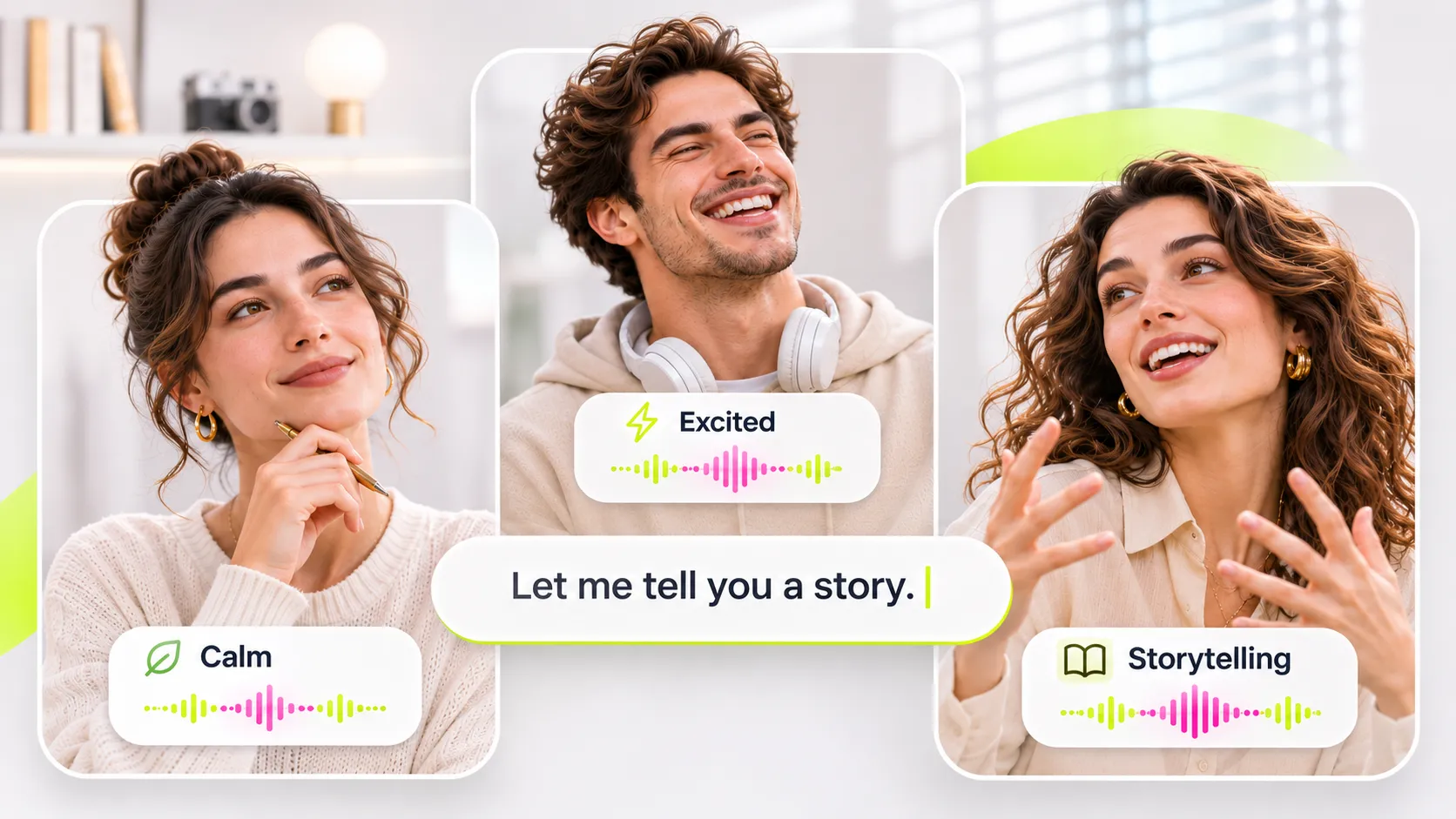
A story, an announcement, and a presentation may each call for a different delivery. Choose a speaking style such as calm, excited, or storytelling to shape how your text is read. Your AI-generated voice can better match the purpose and mood of the script.
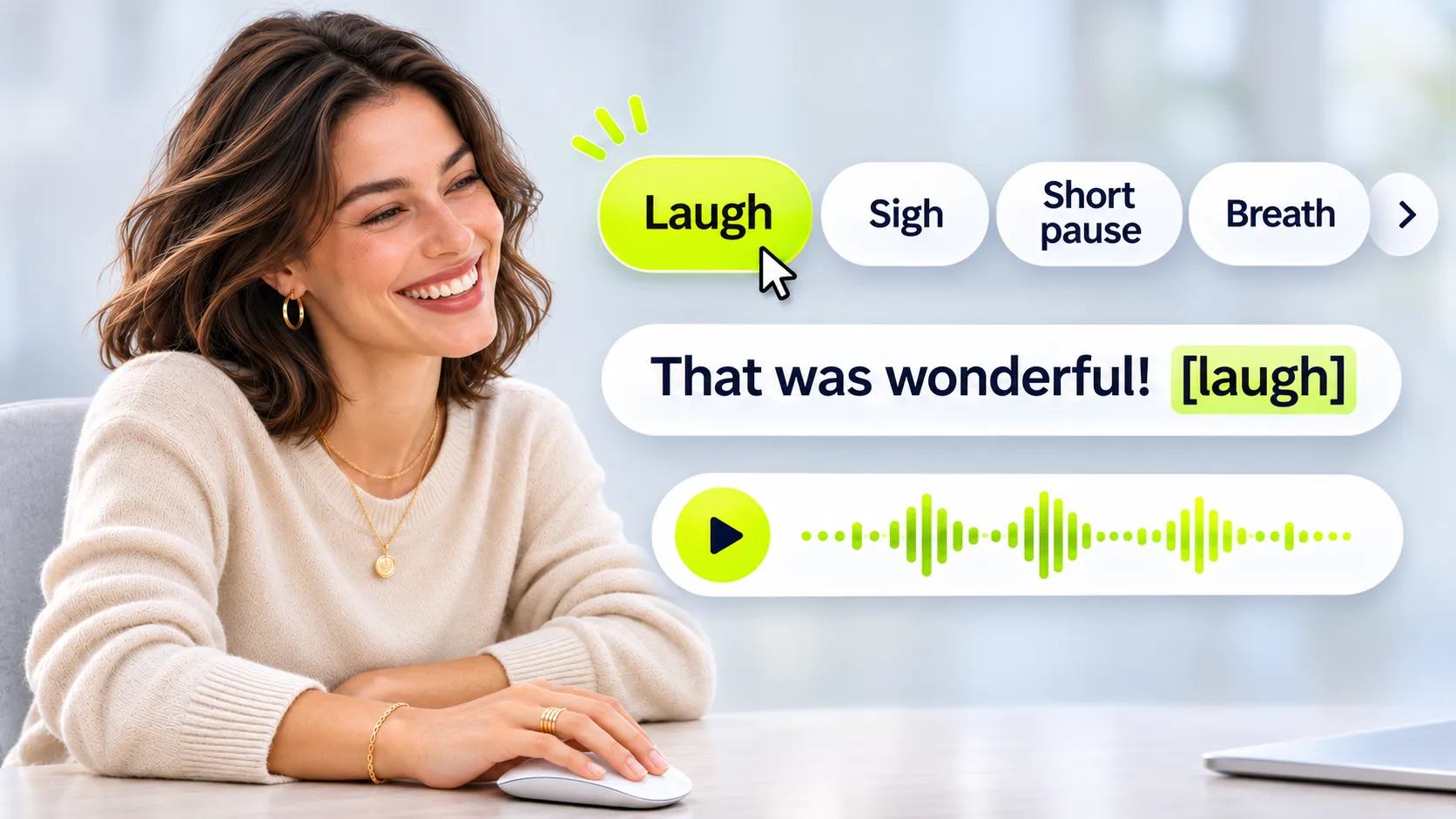
Pauses and vocal expressions can make spoken content easier to follow. Add effects such as a short pause, a laugh, or a sigh at the appropriate point in your text. The AI voice generator brings these details into the speech to support the rhythm and expression of your content.
When a product or process changes, use speech to text to turn the existing narration into a script. Update the text and generate a new voiceover for your tutorial without recording the narration again.
Convert written instructions and training guides into speech for onboarding and internal learning. Employees can listen while following a process and replay the audio when they need a refresher.
Turn a video script into AI narration to check its pacing and length before production. Listening to the draft helps creators identify passages that need to be shortened or rewritten.
Use text to speech to turn example sentences and short passages into listening materials. Teachers and learners can replay the audio alongside the text to practice listening and review vocabulary in context.
Yes. You can use the free AI voice generator to turn text into speech and create audio for your content.
Use the AI voice generator to create speech from text online. Enter your script, choose a voice, and generate audio for your project.
Yes. You can choose from male and female AI voices and preview them to find one that suits your script.
You can choose from styles such as natural, calm, excited, storytelling, and whispering. Select a style that matches the tone of your content.
Yes. Add effects such as pauses, laughter, sighs, and breaths at the appropriate points in your text. These details can help shape the delivery of your speech.
Yes. Once your voiceover is generated, you can listen to it online and download the audio for your project.
Yes. The text to speech generator supports multiple languages, allowing you to create spoken audio from text in different languages.
Choose a voice and turn your script into audio for your next project.
Generate AI Voice