
Prepare Video Narration
Turn a video script into a spoken draft and review it alongside your visuals. Check the audio licence before publishing.
Transform scripts into lifelike narration with our Free AI Text to Speech tool. Convert text to realistic AI voices online for any project instantly.
One introduction, four different voices. Listen, compare, and find the right sound for your next project.
Welcome to 2speech, an easy way to turn text into speech online. Enter your text, choose an AI voice, and bring your words to life. From study notes and articles to video scripts and lessons, 2speech helps you create audio right in your browser. Try a few sentences and hear how your ideas sound.
Text to speech turns written words into spoken audio. Use this online text to speech generator to listen to your own notes, review a draft, or prepare narration from a script. The result can vary with the voice, wording, punctuation, and language, so review a short sample before working on a longer text.
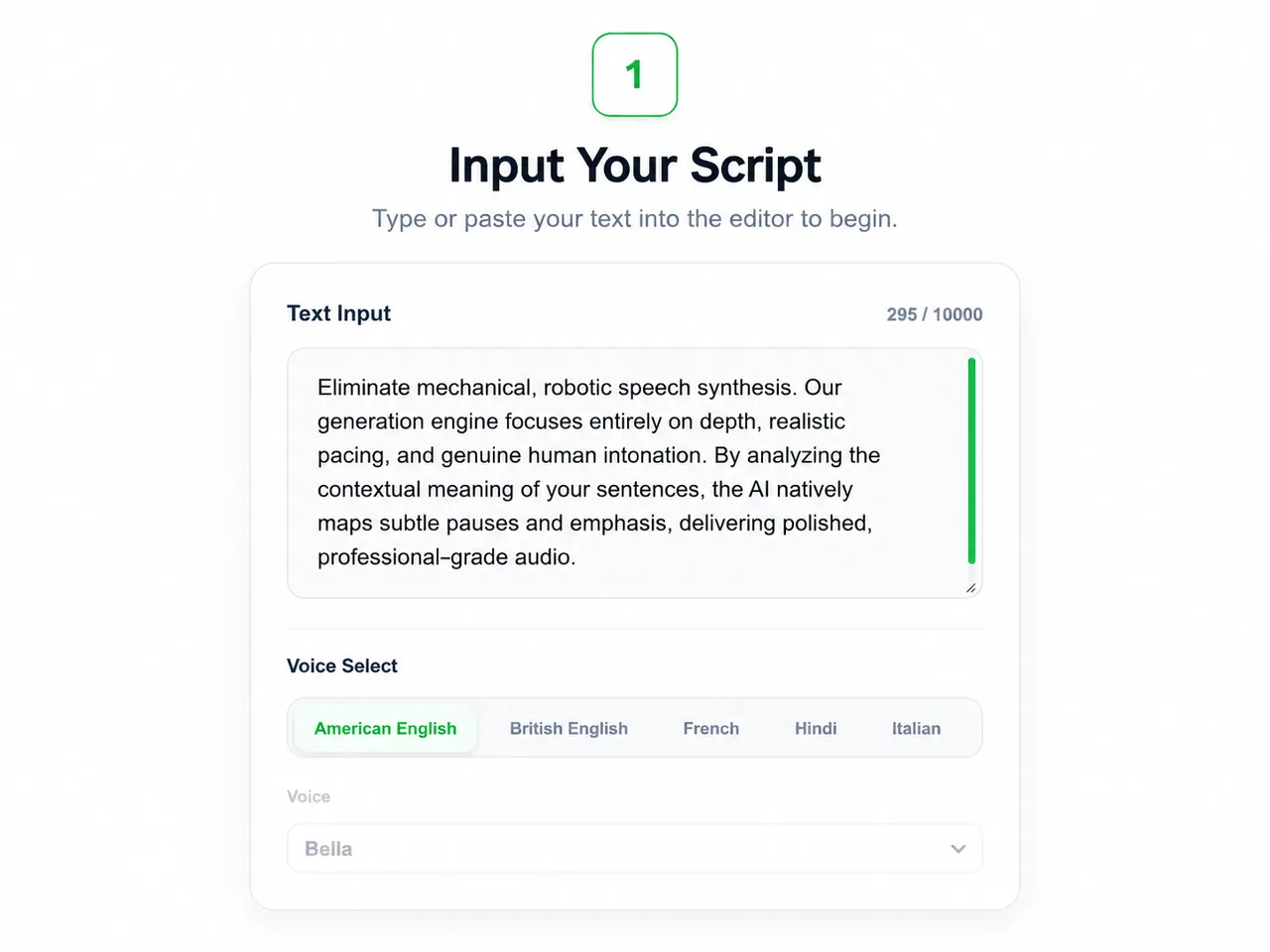
Type or paste your text into the editor.
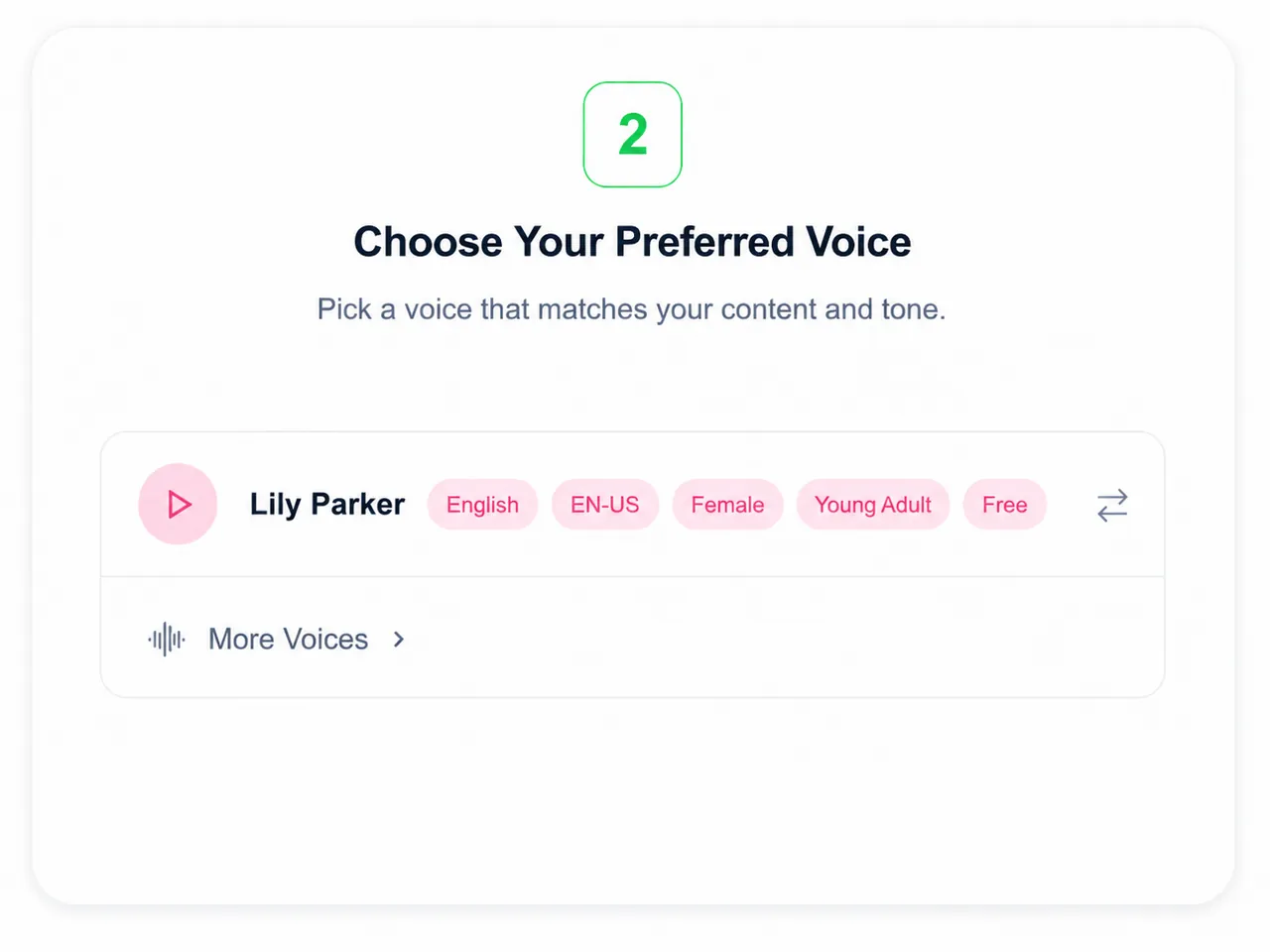
Choose the voice you want to use.
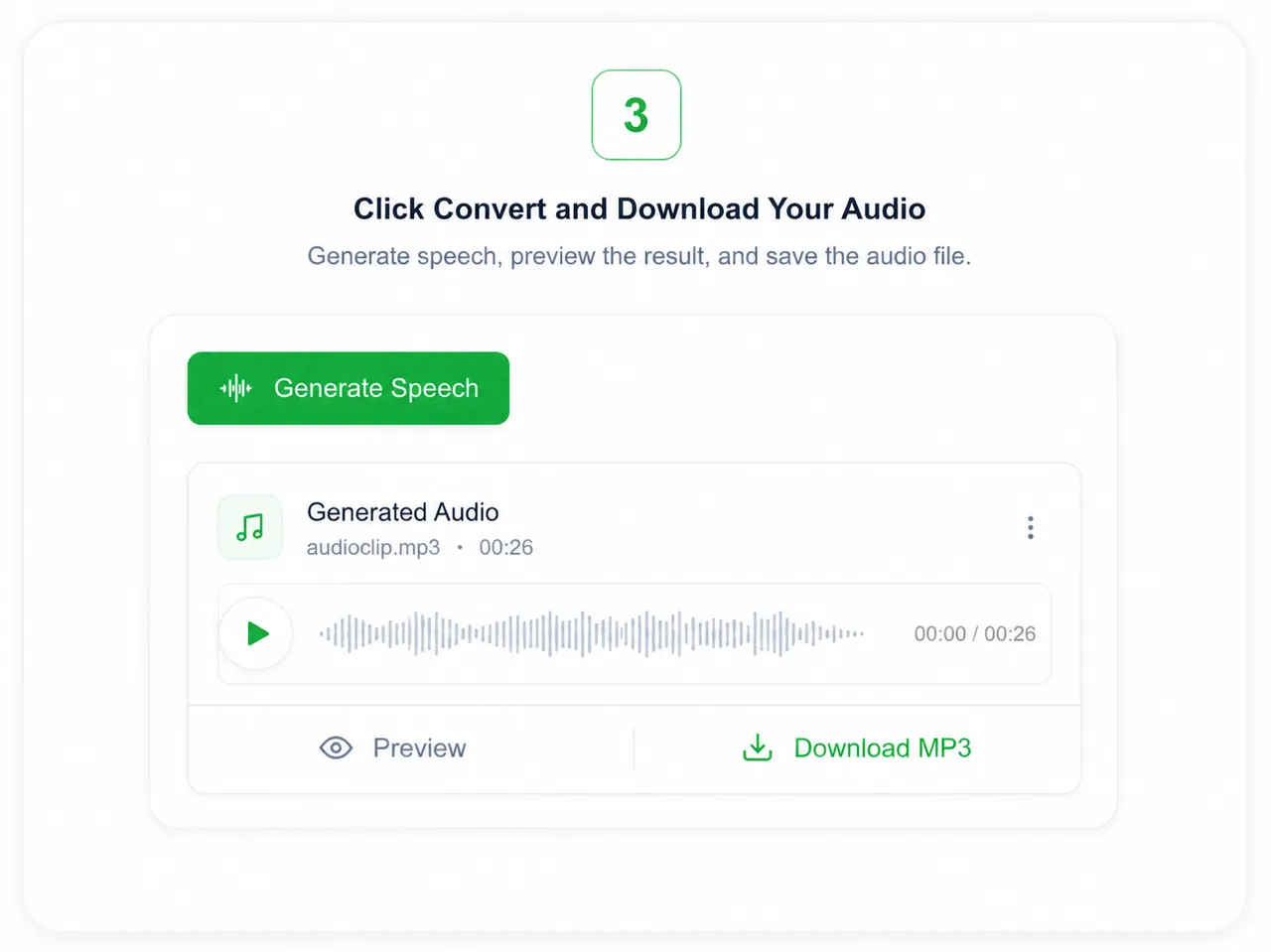
Click Generate Speech to create and listen to your audio.
Use TTS for free to convert up to 500,000 characters into speech each day. The daily allowance and the amount accepted in one request are different limits.
| Tool | Daily allowance | Per request |
|---|---|---|
| Text to Speech | 500,000 characters per day | See the current editor limit |
| Text to MP3 | 50 conversions per day | Up to 10,000 characters |
These tools have separate daily allowances. For a dedicated MP3 workflow, use Text to MP3. Check the current editor limit before submitting a long script and work in sections when needed.
Text to speech (TTS) converts written words into audio you can listen to. Use 2speech as a free online TTS reader to hear your own notes, review a draft, or turn a script into spoken narration within the daily allowance.
Start with the text you already have and choose an available AI voice. Keep the original script alongside the audio so you can check the wording and revise any passage that needs attention.
Try text to speech
A voice that works for a short introduction may feel different across a full lesson or article. Listen to the samples on this page, then try a short passage of your own with the voices available in the editor.
Compare how each result handles your wording, sentence rhythm, and specialist terms. Use the language and voice labels shown in the tool to guide your choice, and review the generated speech before continuing with a longer script.
Listen to the voice samples
Prepare a spoken version of a tutorial, product walkthrough, or lesson script. Review it alongside your slides or video, and adjust the script where a sentence needs more room or a clearer explanation.
For an MP3 file, use the dedicated Text to MP3 converter with its separate daily allowance. Check the applicable audio licence before publishing or using the result in a commercial project.
Open Text to MP3
Turn a video script into a spoken draft and review it alongside your visuals. Check the audio licence before publishing.
Turn your own notes into audio for personal listening and study review.
Listen to your writing to catch repeated words, awkward sentences, and missing transitions.
Listen to longer articles in sections within the tool limits. Keep the original text for reference.
Yes. 2speech text to speech has a free daily allowance of 500,000 characters.Text to MP3 has a separate allowance of 50 conversions per day, with up to 10,000 characters per conversion.
To listen to an article or other website text, copy the passage you want to hear and paste it into the 2speech editor. Choose a voice, generate the audio, and listen in your browser. Split longer articles into sections within the current input limit.
Yes. You can convert up to 500,000 characters to speech per day. The editor also shows a limit for each conversion. Check that limit before submitting a long script, and split your text into sections when needed.
Yes. Listen to Eric, Frederick, Lily, or Nicole in the voice sample section on this page. The result for your text will depend on the voice and settings you use.
Use the dedicatedText to MP3 converter for the MP3 workflow. Its daily allowance is separate from the text to speech allowance.
AI voices can misread names, abbreviations, dates, numbers, and specialist terms. Listen to the result and revise the script where needed before sharing or publishing it.
Text to speech turns written text into spoken audio. Speech to text does the reverse: it transcribes spoken audio into written text. UseSpeech to Text if you need a transcript.
Return to the tool above to enter your text and create speech.
Back to the tool